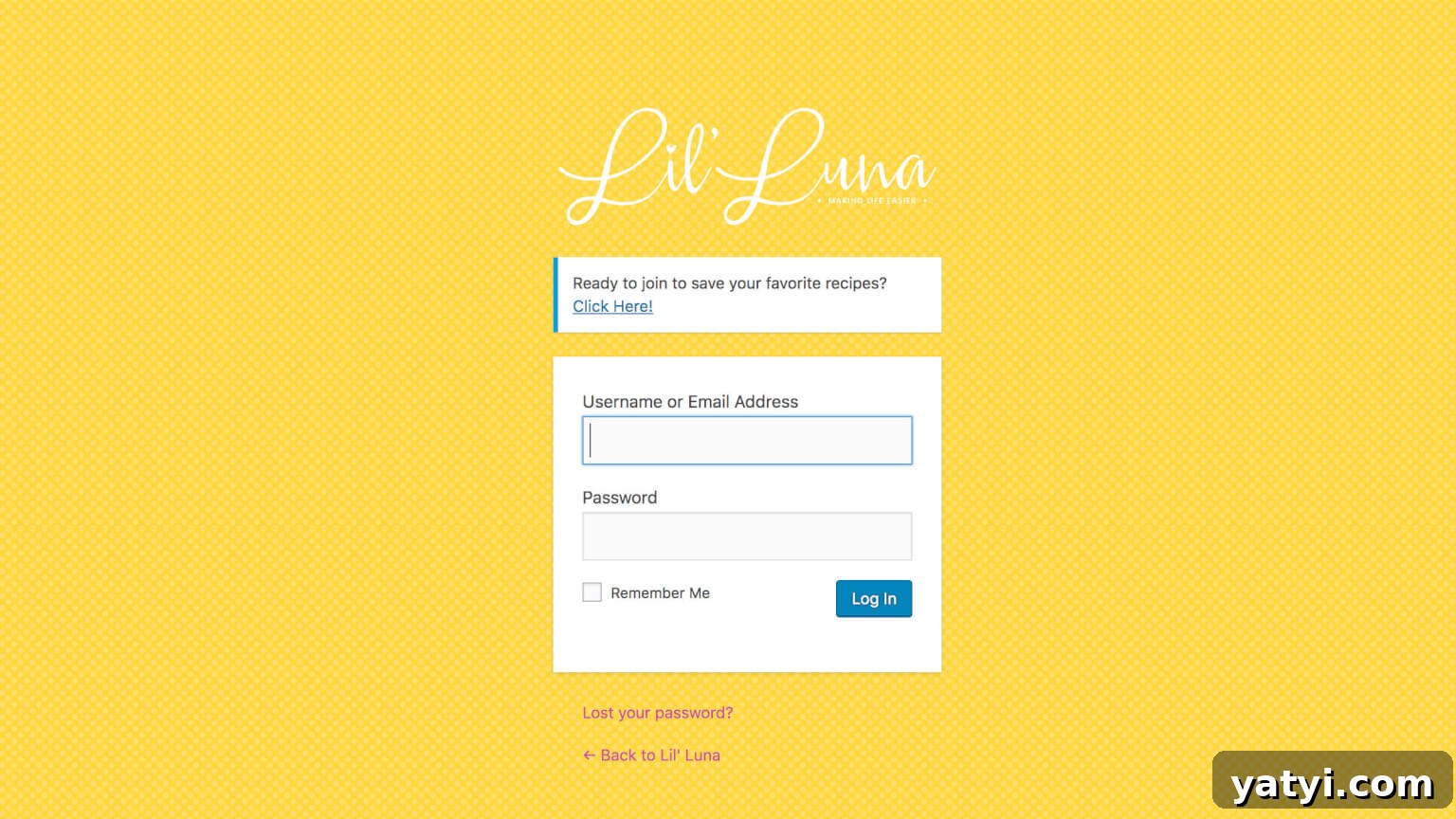
Personalizing the WordPress login screen with your own logo is an effective way to maintain consistent branding, especially on sites where multiple users register and log in.
On many of the food blogger websites we build, users can register and save favorite recipes. Keeping the login experience on-brand reinforces trust and creates a cohesive user journey from the first interaction to daily use.
Both of my starter themes include this functionality out of the box. If your theme doesn’t provide a custom login logo, you can create a login-logo.php file in your theme and add the following code. This snippet replaces the default WordPress logo on the login page with an image from your theme folder and preserves accessibility by keeping text available to screen readers.
Change the $logo_path variable to point to the logo file in your theme. The code checks that the file exists before adding the CSS, preventing errors if the image is missing.
Keep the width set to 312px for consistency with the design, but adjust the height value to match your logo’s proportions. A simple way to calculate the appropriate height is:
height = logoHeight / logoWidth * 312After creating the login-logo.php file, include it from your theme’s functions.php. For example, if you placed the file in /inc/login-logo.php, add:
include_once( get_stylesheet_directory() . '/inc/login-logo.php' );Customize it even further
Beyond swapping the logo, you can style nearly every aspect of the login screen using the same block of CSS. You can change background colors, adjust form spacing, restyle the input fields and buttons, and tailor the page to match your site’s visual identity. Keep accessibility in mind: maintain adequate color contrast, use clear focus outlines for keyboard users, and avoid relying solely on color to convey important information.
If you plan to make more extensive visual changes, consider loading an additional stylesheet conditionally on the login page with wp_enqueue_style and the login_enqueue_scripts action. That approach keeps your styles organized and makes maintenance easier as your theme evolves.
Here’s a short checklist to ensure a smooth implementation:
- Place your logo in the theme folder and set the correct
$logo_path. - Verify the file exists to avoid PHP warnings.
- Maintain readable text for screen readers by using text-indent rather than removing text entirely.
- Test the login page on different screen sizes to ensure the logo scales properly.
- Include the
login-logo.phpfile fromfunctions.phpso the code runs consistently across environments.
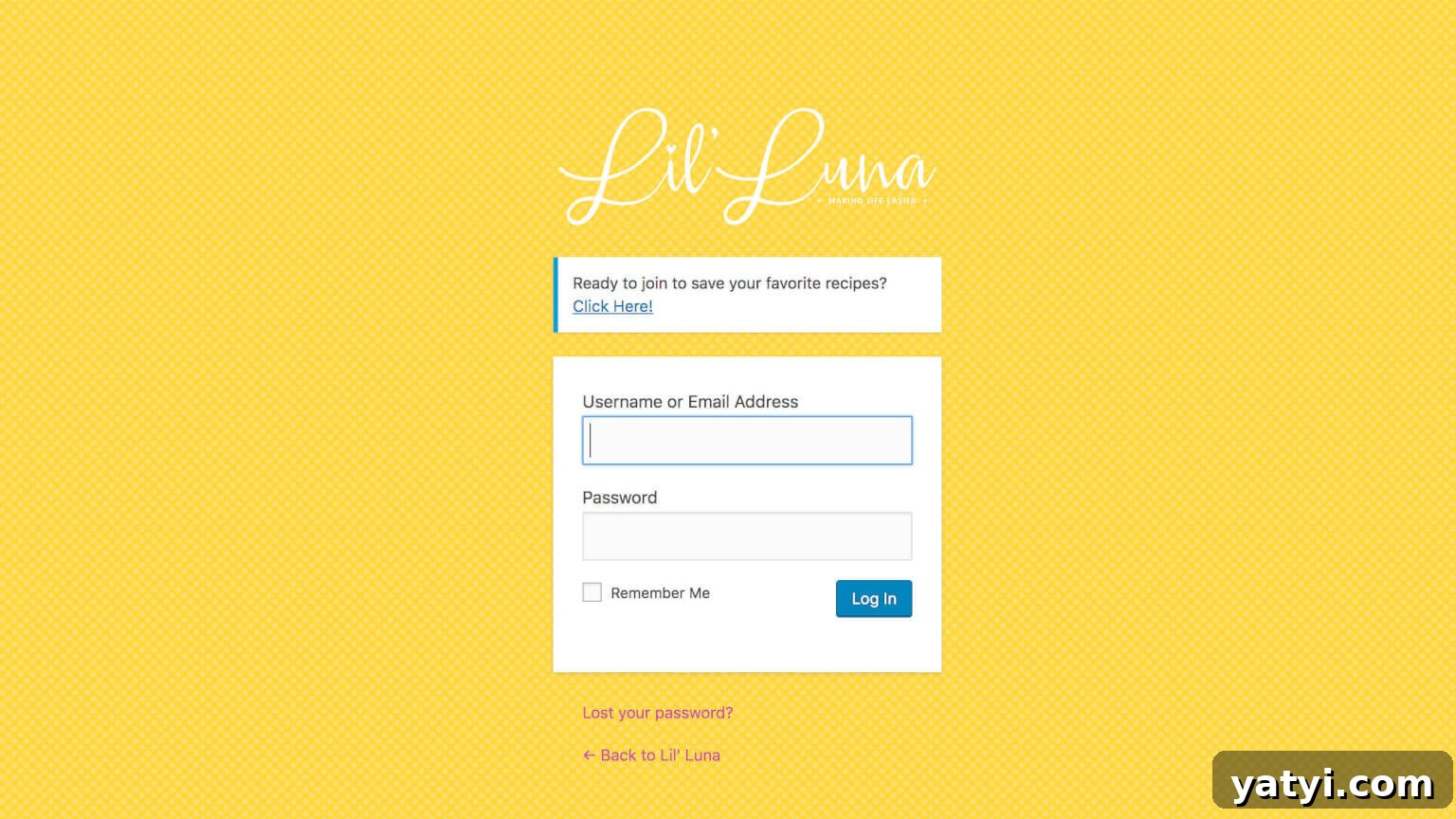
Below is an example of how a styled login page can look. Use your theme’s brand colors and visual elements to create a welcoming, on-brand experience for returning users and new registrants.